Showing posts with label HP Mini 1000. Show all posts

25 May 2010

Back In My Mini 1001TU's Arms

It's been exactly 16 days since that fateful night that my Mini 311 got bricked. And that's also how long I've been living with my Mini 1001TU for survival. Imagine how pitiful I could've been without a laptop of my own!

Ok, the HP Mini 311 is still a netbook technically and so is the Mini 1001TU. But the last "real" laptop I had was an 12" IBM Thinkpad A21e:

Obviously, the image above is not an actual picture of the machine I owned (credits to netlabs.net). True, I was madly in love with that Thinkpad as it was the first laptop I bought with my own money (about the same amount I paid for my MSI Wind back then) but its charms weren't quite enough to send me into shutterbug fits like my dear netbooks did. Actually, the habit started with the Mini 1001TU which remains a gorgeous piece of gadgetry to this day in my own opinion. 
And by the way, my A21e had a 700MHz Celeron CPU, 12" LCD screen, 20 GB hard drive, and 256MB SD-RAM.

The point is, judging from my computing habits and from my portable computer history, my requirements are pretty basic. In fact, my EeePC 701 which now belongs to my cousin, with its 900MHz CPU can still fill my plate quite adequately in terms of performance. I can hardly imagine why 900MHz would choke up on blogger.com anyway. In fact, if not for the agonizingly minuscule screen and keyboard of that very first netbook, we would still be together now. Since then I've progressed gradually to an 8.9 incher in the form of the EeePC 900, next to 10 inchers like the MSI Wind and then HP Mini 1001TU. My first HP Mini hit the sweet spot for me in terms of keyboard typing experience but I still got the Mini 311 for the larger screen mainly - Ion and Atom N280 were merely icing on top of the cake.

A large keyboard and a comfortable 11.6" LCD screen with 1366x768 resolution in a package less than 1.5 kg spell nirvana for me.

Thinking back to the days gone by with the Thinkpad A21e and comparing the experience with my 10" netbooks, I've come to realize that it's actually the vertical screen real estate that breaks and makes the deal for me; I was content with the A21e because it had 768 vertical pixels. 1024 pixels horizontal is fine by me but not that "600" part of the equation. Sends shivers up my spine.

And then I am suddenly forced to go back to the quagmires of 1024x600.

On to the meatier OSx86 related stuff. It turns out I'm not the only one who's unhappy with the 600 vertical pixels - Mac OS X doesn't really dig that resolution config as proven by windows cutting past below the dock (already set to auto hide, mind you). And one particular app that just stands out in its obvious disgust of that shortage in vertical pixel real estate is (drum roll please):

GarageBand '09
I posted about this problem before and in the end, was just resigned to reverting to GarageBand '08 which though still didn't quite dig the 600 vertical pixels, allowed me to move its window around the screen, similar to "panning" movement and thus gain access to those control buttons at the bottom. GarageBand '09 in contrast just wouldn't budge - no panning and certainly just pissed me off when it refused to show me its bottom panel controls despite of how small I made its scale factor.

As I've said, I'm no great musician but I do fiddle with GarageBand once in a while and because I've OCD (or at least, I think I have it), being aware of this little glitch just cannot give me peace. But thankfully (another drum roll please) Zooom comes to the rescue!
image from coderage.com
The app can be downloaded for a 30-day trial period and a license can be had for $19.95 USD.

Zooom is Leopard (10.5) and Snow Leopard (10/6) compatible and is very easy to adapt to. There's even a demo that'll help you get acquainted with the key strokes for moving windows around, resizing windows and maximizing them the unconventional way - that is, in relation to the Mac OS X conventional way of course.

So give it a try or you might even wanna consider shelling out $19.95. I imagine it's gonna be a whole lot useful for those of you who have 1024x600 hackintoshed netbooks so that $20 bucks is money well spent. Hopefully I get back my Mini 311 before the 30-day trial period expires.

P.S. Coderage did not pay nor ask me to promote their app so don't feel all weird reading gooey, cheesy, marketing-like stuff like these on my blog - it's not the first time I did something like this. In fact, I seem to be in the habit of advertising stuff here and there without as much as a dime or cent to my name. Well this whole "HP Mini" mania is evident on this blog anyway hahaha.

Oh and though I do not condone software piracy, if you're on for a little easter-egg-hunting, you can check out my mediafire account for little Zooomy little present. ;) 

29 March 2010

HP Mini 1001TU | Return of the (Dead) Jedi

It's been ages since my HP Mini 1001TU died on me - okay that's me, exaggerating again. Although I'm perfectly happy with my latest (and hopefully last) netbook which is the HP Mini 311, I still felt sad when one day, after leaving the Mini 1000 on and torrenting for the entire night, the little hackintosh machine's screen would no longer flash me that oh so cutie blue HP orb when I turned it on. There would it sit, all led indicators lit up but zilch, nada, rien, niente. No hard drive activity, no nothing - just led indicator lights all three of them shedding their eerie glow in front me, white, red (trackpad), blue.

Honestly I thought it was taking its vengeance on me because I took its precious Snow Leopard compatible WiFi card to feed to the Mini 311. But that couldn't be the case and I should stop treating my gadgets as if they were live, breathing, thinking, and feeling entities or I risk being subject to shrink sessions as initial treatment for my burgeoning insanity.

Back to the main point. As warranty for my Mini 1000 just expired last December and the netbook bonked out on me the next month, I was dreading bringing it to the HP Customer Service Center along Buendia in Makati assuming that the damage was serious - a motherboard (or "logic board" as Apple would have it) problem - which would mean one thing: a humongous amount of moolah. Which I wasn't just willing to shell out for, uhm, an out-dated piece of gadgetry. 

Cut to the chase: "Off to the back shelf you go, my darling Mini 1001TU."

And then I was seriously tempted to get wireless N and actually took the plunge - this time I got a real Apple AirPort wireless N (a Broadcom 4328 chip). So I justified this totally impulsive action by convincing myself that I'm doing this to save money: getting the card meant I could return the Broadcom 4312 card to the Mini 1000 and then I'd have it fixed at the HP Center to finally sell the unit since one girl couldn't possibly own 3 netbooks simultaneously.

First try with the AirPort wireless N card on the 311 wasn't promising and instead of banging my head on the wall to reprimand me of my impulsiveness, I fancied myself busy with school (which I really was, and am, just that it's all in the head - I've a final paper to write due on April 5 but couldn't quite start even a sentence). So today, or last night, while I was bearing with the unbearable abdominal pains that serve for nothing but affirm I belong indeed to the fairer sex, I tried again.

Actually, I was bored and couldn't sleep because Advil wasn't kicking in yet and read this post on a forum: 
I just unplugged the CMOS batt connection from the mobo and then reseat it again.
...Well that's after running the HP Mini 1000 once more under the knife, err, screw driver.
Yep, it's alive!!! 
I was definitely overwhelmed and the thought that I fixed it myself (give me a break, guys, please ;-)) was just exhilarating!

With the hard drive shoved back in, I tested if my Snow Leopard 10.6.2 install would still be good and it was! If not for propriety and fear of being branded as ridiculously cheesy and tasteless, and if I had known how to do it, I'd probably have "Reunited and it feels so good" played on this page - if that's even the correct title of that song.

So my HP Mini 1001TU is back in the loop again, thank you very much, sir! But it ain't got none of 'em wireless thing-a-ma-jig an' so it ain't really gittin' no use, ma'am, as a netbook. What to do?

Well the AirPort wireless N Broadcom 4328 card I got earlier and which also wouldn't work earlier does actually work now - after I uninstalled Parallels Desktop and repaired permissions on my 10.6.2 system on the 311.

All I can say is that everyone's happy: Mini 1000 got his 4312 WiFi card back and Mini 311 is in honeymoon stage with his new AirPort wireless N card who was the former WiFe of a real MacBook. But that one's for another post, another time. Tonight, I rest my (teeny-weeny, itsy-bitsy) screw driver. 
Nah, I used a my dad's set of precision Phillips screw driver set.
Oh and one more thing: I think I can't bear to part with my MacBook Mini after all. :-P

20 November 2009

All About DSDT and the HP Mini


Note: You should run your Mini without any dsdt.aml loaded first before running DSDT Patcher to get your "real" acpi table. 
Also, I'm no expert on this topic as I'm only beginning to learn myself but this is of potential interest to us all Mini hackintoshers - or all hackintoshers in general. :) > Source of inspiration <
Patch your DSDT:
1) Run "DSDT Patcher". Just double click the file. It'll create a dsdt.aml and a Debug folder in that same location as DSDT Patcher
2) Then copy "iasl" from the Tools folder included in DSDTPatcher_1.0.1e to /usr/bin. 
3) Then you can proceed with editing your dsdt.

Open your dsdt.dsl for editing/modding:
1) Look in the "Debug" folder that will be created when you first patched your dsdt in the same DSDT folder along with DSDT Patcher itself. Save a back up copy of this original dsdt.dsl for reference.
2) Open the file "dsdt.dsl" which TextEdit or better yet open it using Text Wrangler

MODS:

23 October 2009

Leo or Snow Leo?

I've been living with Snow Leopard for almost 2 months now and coming from 4 months of Leopard 10.5 (ah, those were good times), how do I find its "fairer" brother?


Aside from the GUI stuff - Dock Exposé, QuickTime X, revamped Icon View with support upto to 512 pixels (you can play a video, flip through a document without opening an app), there are some things that make a hackintosher's life easier in Snow Leo. So far, I've found 2 which have obviously delighted me; I'm blogging them.

18 October 2009

Snow Leo EFI Boot Guide Revamped: Part 2

UPDATE: This guide is no longer relevant to the HP Mini 1000. Kindly please see this new guide instead. Thank you.

Install Snow Leopard onto the HP Mini

1. With the USB installer plugged in, switch on the Mini and press F9 as it starts. You’ll see the boot menu screen. 
2. Use the up/down arrow keys to choose your usb hard drive from the list and press the Enter key. Wait until Darwin finish its countdown which, by default, will boot “SnowDVD” volume and get you into the Installer Program.

14 October 2009

Of Trackpads and Other Quirks


It's no secret that I've had problems with my trackpad - I'd broadcast that little snippet practically in all corners of my cyber existence. Well the good news is make that "I used to have problems with my trackpad". It's up and running like its old self again which makes me one happy hackintosher.


Now how did that happen???


I couldn't even begin to make a logical summary of what happened so just I'll just provide a timeline to better illustrate things.

14 August 2009

Battery, Battery

[caption id="" align="aligncenter" width="188" caption="from Slim Battery site"][/caption]

You've just successfully installed Mac OS X Leopard on your precious Mini, gotten out alive from a proliferation of how-to-guides all a-jumble that you'd scourged high and low from the world wide web so you're updated to 10.5.7 or 10.5.8.

And in the pursuit of that ever ellusive happiness, you tweak your MacBook Mini to your tastes and one of the nuisances you take care of aside from the pesky resolution that would almost always break at every update (save those video kexts under "Break In Case of Update" glass), is that equally pesky warning message that tells you that:

"You are now running on reserve power."


blah blah blah


You've just unhooked your MacBook Mini from the mains just a few minutes ago and that 80% charge remaining can in no means be insufficient to run your spanking hackintosh-netbook. No way.


For the longest time, I've always opted to disable battery warning messages (System Preferences > Energy Saver - you just dig around there ;) ) and then take out the default battery icon from the Menubar. So off it has always gone to oblivion with a disgruntled poof of cartoonish smoke, never again to be summoned to grace my hackintosh computing view. I've always replaced it with Slim Battery.


But because of reasons unfathomable even to myself, I wanna be able to use the default battery menulet (yes, according to Mac OS X Leopard, The Missing Manual, that's what you call those icons sitting on your Menubar). I find that the iDeneb patches found in /.../system/Installation/Packages/Patches of the iDeneb installer disc extremely interesting.


If you're on kernel 9.7.0, that is kernel from 10.5.7 (cause you may be on 10.5.8 but using this kernel to get sleep/resume), you can install the iDeneb PowerManagement.pkg patch and forget about Slim Battery altogether.


We may or may not have the same results but it seems to have eliminated that warning message pest. Just apply the package after installing the usual kexts (VoodooPower and VoodooBattery).

09 August 2009

Ms. International

Nope, not joining and the nerve of me to think myself qualified. I'd long accepted the fact that I'm better off being a geek. Why then the title to this new post?

Je suis francophone; French is the language with which I earn my daily bread. Once upon a time, I also spoke Italian with my batchmates in college to gossip about those Filipina version of the "Plastics" in Lindsay Lohan's Mean Girls. And before you click on that red orb (if you're on a Mac or hackintosh) or red x (if you're on, may the forces of mother nature forbid, Windoze), I'm now reluctantly learning Mandarin. Reluctant because I'd never intended to learn that language because of the complexity of Chinese characters and the tone system they use - I'm tone deaf so good luck to me. But because of a certain Taiwanovela, I got the fever and now I'm officially crazed addicted to everything Taiwanese so watching fresh video uploads on youtube.com which are neither subbed nor dubbed in the lingua franca, I'm forced to learn some Chinese and as good fortune could have it (oh my, is that feng shui/Chinese idiom related there?), my brain has actually absorbed the language.

I now recognize a number of Chinese characters and I need a tool to be able to write in Chinese in forums. At work, where we're all on black IBM boxes, I use NJStar text editor which is a pretty neat app in that it functions as a dictionary as well. At home, I'm a Mac girl - make that a Hackintosh girl - and as literate as I might seem on Mac OS X with all my blabbing about kexts and kernels and bootloaders and HFS Journaled Extended partition what-not, I'm still in awe at the discovery that Mac OS X actually supports Chinese input natively! No need to hunt down a Mac version of that NJStar text editor cause TextEdit does it brilliantly!

All I need to do is go to System Preferences > International > Input Method tab, and select Traditional Chinese (cause it's what they use in Taiwan instead of Mainland's simplified), Pinyin.


Then in the Menulet that will appear, after I'd opened up TextEdit, I just select Chinese from the dropdown menu. . .


And voilà!


A toast with my mugfull of Apple fangirl Kool-Aid: Isn't Mac OS X just totally awesome? :D

06 August 2009

And the Never Ending Saga Continues. . .

Edit: Sleep/Resume has been resolved. Read it here.

First off, you can call me Hermione Granger-ish all you want, before taking the 10.5.8 plunge, I did some research, or to be more honest, some googling around ;) and found this interesting website.

NOTE: This is assuming you've already a working iDeneb install updated upto 10.5.7 - dsdt patched, OSx86_Essentials kexts applied, and Chameleon RC02. (I haven't checked how things would go on PCI_EFI Chameleon 1.0.12).

And like any bookworm out there who easily believes what she reads, (1) I obediently backed up my Extensions via Terminal:

$ sudo -rf /System/Library/Extensions /System/Library/Extensions_1057


Afterward, (2) I installed Disabler and dsmos kexts referenced by the aforementioned website via good ol' Kext Helper b7 but color-coded them first cause I was too lazy to check whether I had these kexts already or not in my current setup, there's no way I'd miss those red kexts now if ever I'd need to check later :D

(3) That done, I didn't reboot yet but ran the Mac OS X Delta 10.5.8 Updater (Delta because I was running 10.5.7 already, 10.5.6 and lower should get the Combo Updater) I'd downloaded just minutes before from the Apple website which, quite surprisingly, took fairly little time to install at around just 5 minutes or less.

I originally intended to reinstall VoodooPS2Controller just in case but decided at the last minute not to and (4) just hit Restart as Installer completed the update. As expected the first reboot didn't complete and the Mini restarted and once again I was face to face with Chameleon RC02 (I've updated my bootloader to the latest Chameleon, by the way, and am enjoying my OS X Boot Theme which I got from here). Then Darwin said "hi" again. The screen flickered, giving me goosebumps as I thought I'd never get into my beloved Leopard desktop. And the spinning wheel finally sprung into action and after what seemed to be a substantially longer boot time than usual, I first saw nothing but a blue screen. . .and my cursor - whew! Another 5 seconds or so, I was back into my desktop!


But everything was humongous; resolution got bricked as expected.
Perhaps this screenshot could better illustrate what happened after the update:

[caption id="" align="aligncenter" width="461" caption="No Bluetooth, WiFi, Resolution 640x480, Color not 32-bit | Has audio, default battery monitor working (right click and open in new tab/window for screenshot's actual size)"]No BT, WiFi, Resolution 640x480, Color not 32-bit | Has audio, battery[/caption]

It was a comfort to know that screen brightness controls weren't bricked. As it was nearing midnight already I dimmed the screen to the lowest possible before (5.1) I trudged on, reinstalling my usual kexts via OSx86 Tools and not Kext Helper since unlike the latter (Kext Helper b7 it turns out, also backs up your kexts), OSx86 Tools would create a backup folder of the 10.5.8 kexts it replaced which I wanted to look at after. I started with the system kexts which seems to have restored WiFi and Bluetooth. I had no problems with sound as VoodooHDA still worked after the update.

(5.2) Now for the video kexts. You can opt to reinstall all of the kexts in one go; I just decided to separately install them because (a) they're already sorted into two different folders in my drive and OSx86 only allows installing 1 folder of kexts at a time and (b) I'm just weird that way. Restarted and bingo!

[caption id="" align="aligncenter" width="480" caption="Bluetooth, WiFi (Airport), Audio, Battery, 1024 x 600 32-bit (right click and open in new tab/window screenshot in actual size)"]Bluetooth, WiFi (Airport), Audio, Battery, 1024 x 600 32-bit[/caption]

There was that nasty "You are running on reserve power" battery warning again and in wanting to screenshot it, I tried to make it pop again by putting MacBook Mini to sleep so I closed the lid and it was late when it dawned upon me that the usual flickering of the white power led and switching off of the fan didn't happen. I reopened the lid and there were the tell-tale signs of a broken Sleep/Resume that were all too familiar to me by then. I knew I had no choice but to force shutdown the Mini and turn it back on so I plugged in my broadband cable to check if ethernet worked. It did. It does.

[caption id="" align="aligncenter" width="482" caption="No need for Yukon2.kext, just be sure to plug in cable before booting up"]No need for Yukon2.kext[/caption]

Now for a summary. At first I thought I was gonna end up listing down the few stuff that still worked but, as it turned out, I'm now writing what doesn't work which means the general outcome of this experiment isn't so bad after all:

1) Sleep/Resume - once you put the Mini to sleep either by closing the lid or pressing fn+f1 combo keys, the screen does switch off but so do the trackpad and, I assume, the keyboard as well, never to be woken up again but by forcing the machine to shutdown and just turn it back on again.

2) Fan - it's gotten hyperactive I guess as it now whirls away with fervent gusto at maximum right from the start and it's noisy.

I would've also listed the battery warning nuissance pop-up alert but that's easily ignored or resolved by turning off battery warning in System Preferences, taking out the default OS X battery meter from the Menubar (enjoy seeing it vanish in a poof of smoke) and using Slim Battery Monitor instead.

What happened to my 10.5.7's Extension folder's back up now? I'm keeping it safe for the meantime as I try to figure out how to resolve the issues mentioned above; the kexts can come quite handy, who knows.

For issue # 1, I'll have to try the old SleepEnabler kext and/or review VoodooUSBEHCI again for some hints. For issue #2, I'm gonna see how posta74's fan solution works out on this one.

All of this is actually reminiscent of struggles with previous updates 10.5.6 and 10.5.7, still fresh in my mind - 10.5.8 is déjà vu. Creepy, I know.

And now I've turned another fork in the road - Harry Potter's lightning scar no longer burns; the King has returned to rule the whole of Middle Earth and even Gollum has found his peace and so has Frodo (though I still doubt he's come out of the closet yet ;) ) and Luke Skywalker has swung his last light saber - sagas have come to their own grand close yet this hackintoshing journey of mine seems to never end. T_T

05 August 2009

DVDPlayer

So I've already posted this over at the other blog, macbookwind, but I thought I'd put it as well here.

For those uncomfortable with editing the DVDPlayback file with a hex editor, just download this file , unzip it and then navigate to

/System/Library/Frameworks/DVDPlayback.framework/Versions/A

to copy paste the file in that folder. Authenticate as you are prompted.

Note: as always, as safety precaution, you may want to first make a back up copy of your original DVDPlayback file before doing this. Also, DVDPlayer won't work when an external DVD drive is not plugged in via USB.

03 August 2009

SMBIOS Dilemma

I guess I'm OC; that's just the way I am. That's why I tend to nitpick through every single detail with MacBook Mini. As I'd just finished with dabbling with Snow Leopard - for which experiment MacBook Mini has fallen docilely as prey - I said I'd restart anew. Yep, new install. That's what people with absolutely no life do.

As you see, I've always been wondering why MacBook Wind happily assumes MacBook Air's identity, embracing it as its own while MacBook Mini is a bit confused - ok, make that totally confused. In the past, whenever I checked Apple Menu > About This Mac > More Info . . . and System Profiler launches, it gave me a nonchalant "There was an error while gathering this information" as it highlighted by default the Contents > Hardware main header.

So when I reinstalled iDeneb 1.3 (10.5.5), I made sure I checked the SMBIOS option for a MacBook and true enough, when I checked just before updating to 10.5.7 as per my usual routine, here's what I discovered:

10.5.5 as it is, delivered by iDeneb v1.3 actually can recognize MacBook Mini for what it really is. Even details pertaining to the Processer and Memory are correct. Although when I checked just the "About This Mac", I still got this:


Upon further investigation; I found other tiny details that attest to my MacBook Mini being recognized as a MacBook by OS X:


That's clearly a lappie depicted by the icon there. Now compare it to this (udpated to 10.5.7):


A Mac Pro, so it seems.


Actually, this shouldn't be a problem. But for OC'ness sake, if ever such a word was, I find myself irritated with this. I tried extracting the MacBook SMBIOS from the iDeneb installer and apply it to MacBook Mini again but nothing happens.


I don't know until when I can endure this and continue to just ignore stuff. Honestly, I'm reconsidering editing the DMI/BIOS again; I just have to figure out how to make the Mini be a MacBook without borking out the original HP logo in the boot splash nor getting a painfully slow boot up time.


Decisions, decisions...


11 July 2009

Insecure

Now I don't exactly know if that's how you write the word to describe a computer that's not secure. But I do  know that's how one girl I know felt after watching Transformes: Revenge of the Fallen (does Megan Fox really have to wear real skimpy shorts while drawing on the motor bike and do her lips need to be in perpetual pout, even when in the desert and Decepticons were trying to kill her and Shia Labeouf's characters? Hahaha)

These days, my MacBook Mini's becoming well integrated with my daily computing experience. That is, I find less and less things to tweak with it - aside from that (a) audio and (b) mic functionality which is still (a) imperfect and (b) not working at all even with VoodooHDA already installed.OpenHaltRestart.kext seems to be acting up still as it occurs sometimes that MacBook Mini fails to complete the Restart process.

All in all, I think I'm reaching a plateau here. I've just done the fan tweak and so far so good - no major catastrophes whatsoever and congratulations to me by the way: it's been a month and a half since the last time I did a "wipe-out, reinstall" on MacBook Mini - the longest period I've gotten so far with the same installation! Hurray! I'd have gladly credited it all to a substantially improving emotional quotient, leveraging mainly on patience but I'd have to admit that it's just that work has been busy lately.

So what am I posting about this time?

16 June 2009

Welcome!

I guess the Obsessive Compulsive in me still hasn't been eradicated - not entirely...yet. So I reset my MacBook Mini via OSx86 Tools


And I finally got a glimpse of the OS X Welcome vid!


I didn't expect to see any effects of this performance-wise on my MacBook Mini but I was well surprised that my previous not so bad anymore 44 second boot time was even reduced to 35.

But I think that'll eventually change as I continually use MacBook Mini on a daily basis, accumulating gunk as I go. However, I really like the feeling of this new start - it's like I've a brand new MacBook Mini! :D

11 June 2009

Dreaming Of a White (Snowy) Leopard


It's faster than Leopard.

It's got new hot technologies like Grand Central and OpenCL.

It's incorporating 64-bit experience right into the core.

In short, I want it. No, scratch that. I desire it.

But putting Leopard on x86 beige PC boxes and Atom netbooks hasn't been without issues and lots of talented hackers reigning supreme in geekdom have invested time and sweat or even blood so that lower-tier geek wannabe's like me can get a little taste of OS heaven. And now comes Snow Leopard.

Now why would someone whose only consumer electronic that comes from Apple is her 80 gig iPod classic and whose netbook is the only computer that could be classified as latest tech, dare to dream of an OS that's clearly out of her league?

02 June 2009

Function Key

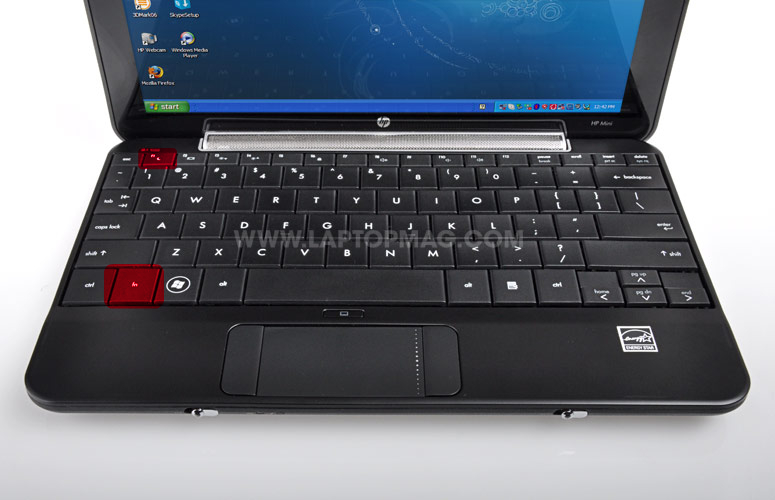
hpmini1000keyboard

For some reason, sleep/resume has never been a problem for me with Mac OS X Leopard on the HP Mini 1000 and even after updating to 10.5.7 a couple of weeks back, it's still working great as always.

And then I discovered something that made me more in awe of the beauty and gorgeousness that is the MacBook Mini! I can go put the machine to sleep by pressing Fn + F1. Of course I can still just choose to close the lid and off to dreamland it'll go.

Another Fn + F1 will wake the Mini up :D

Pressing any key will wake the Mini up.

For hackintoshes, laptop hackintoshes more specifically, the Fn combo keys usually make one of the big problems in terms compatibility. For example, when I started off with iDeneb 10.5.5, installing the IntelGMA950 kexts would indeed put my screen on the right 1024 x 600 resolution but it would mean losing the ability to use the brightness controls (Fn + F3/F4) . So knowing that Fn + F1 sleep works is a comfort.

28 May 2009

It's the Effing Effort That Counts

CIMG1923

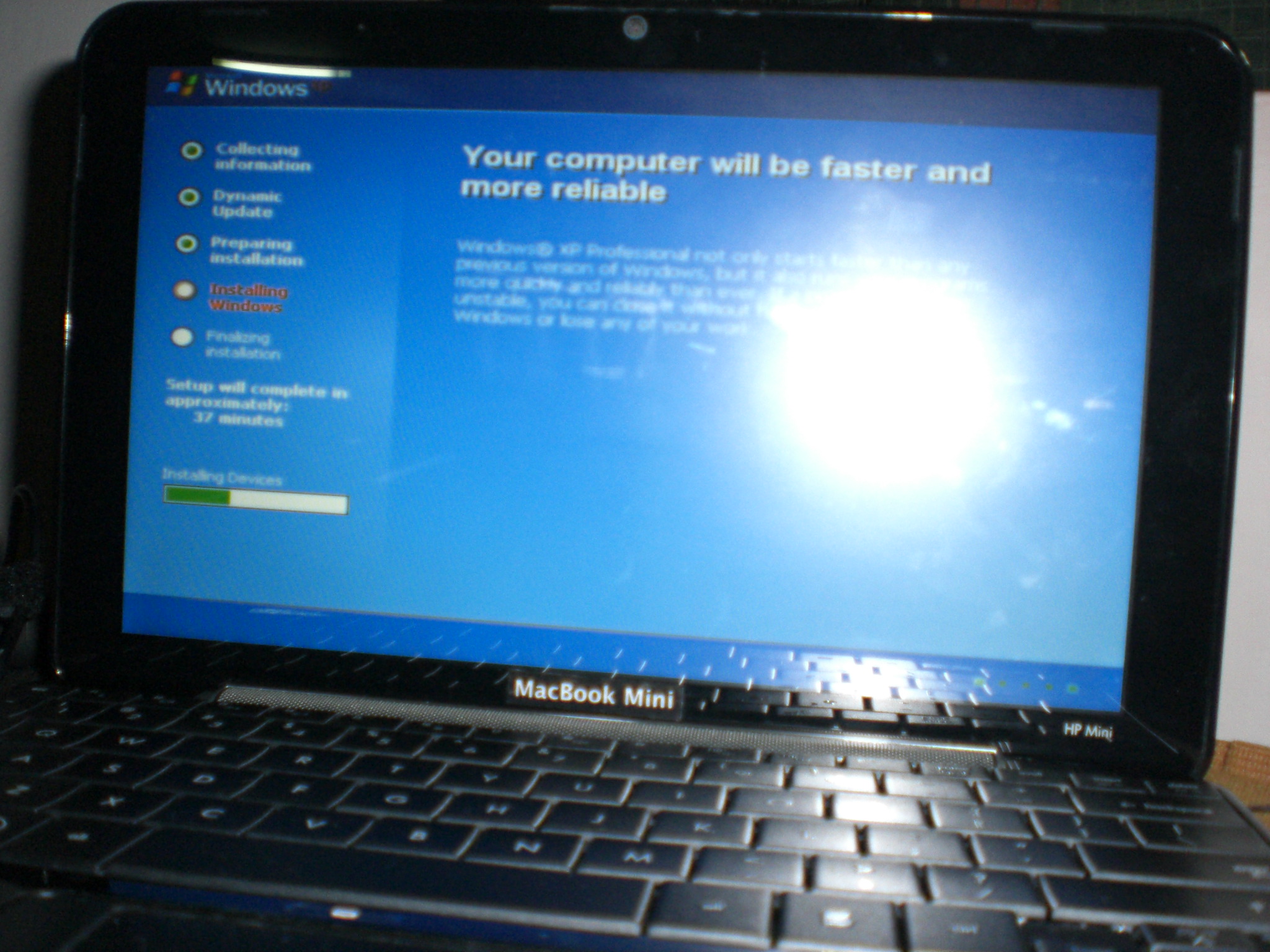
Right now, I'm installing Windows XP on the HP Mini 1000. I've partitioned the measley 60 GB 1.8" PATA hard drive of the netbook, giving 4 GB to Bill Gates' most ubiquitous OS as of the moment -- ok, the most ubiquitous OS ever in the world. My external DVD drive has been wheering away for almost an hour now -- oh, it's stopped and I'm being asked to click on Next and then enter my product key whose all 25 characters I've practically memorized by heart -- and gone over 1 reboot already.

Why am I doing this anyway? Didn't I vow to love and cherish MacBook Mini forever? And that means with only Leopard as our main OS? Well, I'd been dumb enough to screw up the HP Mini's bios with DMI edit - it's now a Compaq and not an HP. I'm thinking reflashing the bios will restore the HP logo; I'd still have to find out once I get into Win XP and run the WinFlash utility from HP.

20 May 2009

iLife 09

Enjoy iLife 09 without shelling out precious bucks. Fix iPhoto first though. If you find iWeb useful (I don't but I still have it installed anyway), it's also yours.

And to get everything all spiffy, get and install the following updates from Apple:

iLife 09

iPhoto 8.0.2

iMovie 8.0.2

iDVD 7.0.3

iWeb 3.0.1

GarageBand

Lessons Learned

DSC01308

DSC00268

MacBook Wind.


MacBook Mini.

That makes two netbooks that I've successfully hackintoshed. After countless rounds of installation, reinstallation, tweaking, applying kexts, updating and then some more tweaking, have I truly understood the game?

Perhaps I'd just try to summarize what wisdom I've gained from this story and journey into these few guiding rules:

Initial OS X installation:

18 May 2009

Bleeding Edge (Love)


Warning: long post ahead

Before people accuse me of spouting sonnets - if they can even be considered sonnets, which I doubt very much that they are - from Leona Lewis' old hit song "Bleeding Love", this one's got nothing to do with that subject matter but is definitely similar in terms of the emotional state involved; I could've probably bled to death this past weekend after all the frustration from updating my MacBook Mini to 10.5.7.

And to what ends, might you ask? To stay on the bleeding edge of what's techie hot. Since Apple made both the delta and combo updaters for 10.5.7 available for download from their website, the hackintoshing community the world over (maybe even across the galaxy, or universe, since some guys are really geniuses they just gotta be aliens no less) became hyped with this latest update.

Trouble is, I'd just started celebrating my successful OS X install and 10.5.6 update + new 2 GB RAM on my HP Mini 1001TU, slapped an Apple sticker I custom made with tender lovin' care on the glossy-swirl-patterned lid when found myself face to face with yet another challenge. I'm a geek so instead of just sitting around in my cozy corner and preserve the current Nirvana state of my MacBook Mini (I just had sleep/resume resolved with the 2 GB RAM upgrade), armed with kexts I got from the OSX-how-to-guide over at myhpmini.com, I took a quick look at my files to check that my precious personals were somewhere else safe, I took the plunge, prepared for head on collision or even worse.

1st try:

06 May 2009

HP Mini 1000 - Hackintosh Resource

Update: I've posted a better, concise installation how-to with updating up to 10.5.7. 

Today, I find myself with nothing to do - again. Short of succumbing to playlist fanstasyland with iTunes on my work pc or getting absorbed in reading others' blogs till it's suddenly time again to trudge back home, I thought I'd go update this blog with a new post.
So what's up that's worth the time flexing my fingers for this post to be typed and read?

Well, the HP Mini 1001TU is getting more familiar, thereby making it easier to hackintosh - and by hackintoshing, I meant installing OS X and fine tuning stuff. So I feel the right time has come for me to create my own how-to guide which will serve as my own personal reference that everyone's welcome to use if they feel like it.

HP Mini 1000 - Hackintosh Resource