
CAUTION: The following instructions below are to be carried out AT YOUR OWN RISK. I am not responsible for any damage resulting from this.
UPDATE: My HP Mini 311 is a 311-1002TU to be exact. It uses a 1MB BIOS rom file and this is what this guide refers to. Should yours require the 2MB BIOS rom file, then use the 2MB file included in the .zip file.
What You Need:
1. USB flash drive - the HP Mini 311, some say, is picky with USB's. Use one that you've tested to work before - in the previous BIOS updates, F.15 and below.
2. Icelord's F.16 - This bios image has a customized logo, a happy Mac, by MowgliBook. Unzip the package and rename either the 1MB or 2MB file 3651.BIN. Depending on your HP Mini 311 model - Google is your best friend in finding out which file your Mini 311 uses.
Prepare the USB to be used as BIOS flasher:
1. Format the USB drive to FAT32 - I normally do this in Windows, just to be sure using the HP USB Disk Storage Format Tool.
2. Put 3651.BIN, the one you downloaded above, to the USB drive.
Flash the BIOS:
1. Turn off the HP Mini 311 and remove the battery. Make sure you plug its AC adapter to electricity source.
2. Plug in the USB BIOS flasher - I prefer using the USB port at the left, along side the AC adapter/power port.
3. Press "Windows" and "B" keys at the same time. Hold for around 15 seconds.

4. Without letting go of "Windows" and "B" keys, press the Power button to turn on the machine. Wait for about 15 seconds. 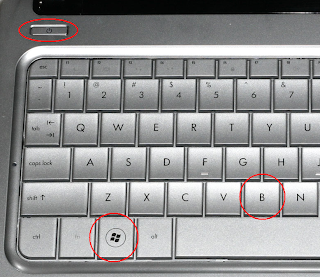

5. Let go of the two keys simultaneously. In the next 10 - 30 seconds or so, your HP Mini 311 will beep and its fan will run. DO NOT TURN IT OFF or do anything, let it do its own thing and IT WILL TURN OFF ON ITS OWN.
6. Plug in the battery back and plug out the USB BIOS flasher. Verify that you do have F.15 bios by pressing F10 before the computer loads the OS.
Addendum: If your USB flashdrive, formatted as FAT32 via Windows default formatting feature, try formatting it with the HP USB Disk Storage Format Tool linked above. If it sill doesn't work despite following the flashing guide closely, then it might be that your USB flashdrive is unfortunately of the kind that is not compatible with the HP Mini 311 (see comment at #1 in "What You Need" section). Use another USB.

